Liked us?

d

Welcome to This Blog

Hello and welcome everyone to this blog.Here you can get wonderful computer tricks and tweakz .Also I will provide you freebies time to time so just seat back and explore this blog.......

Make your own virus - DELmE's Batch Virus Maker

Hackforums.net has made a virus generator program with the use of it you can make your own virus..........thes virus are so dangerous that it can destroy your whole PC so I warn you use this program at your own risk.But thes program is best to destroy your enemy's computer,If you want to know how a virus is made then these programme is best for you

Making a dangerous virus -Matrix !!!!! For EDUCATIONAL PURPOSE ONLY

This virus will wipe out your whole HD using an animation of 10secs, it will also use your IP to harm you and your isp (not bad in my case tongue.gif ) and spread to all your contacts...

How to create a fake error message-mostly for windows

With this help of this page you will know come to know how to create a fake error message which works mostly for windows

Windows explorer shortcuts

In this page you will came to know about the windows explorer shortcuts which will help you in using your computer faster

Annoying Google - Google hacks

In this trick the capitalisation of your searches will change automatically.Some words will change into small letter and some into capital letters in your search result.Also there will be the change of logo as you can see in the picture

Showing posts with label shortcuts. Show all posts

Create One-Click Shutdown and Reboot Shortcuts 2

Coder Himanshu | Sunday, August 28, 2011 | , ,


Hello Everybody!!!!


Hope you have liked my previous post of about Fake Mailing(.....) Today I am going to post something useful for my readers for faster shutting and rebooting of your processor. The trick is although very simple and easy to use but still it is highly recommended for faster computing. After successful completion of this trick there will be two shortcuts in your desktop with the help of which you can shutdown or reboot your computer more faster than ever.


I will discuss this trick in two ways..first is
THE EASY WAY
and the second one is
THE HARD WAY
or
THE STYLISH WAY.
In the easy way the trick will be completed easily without advanced customization while in the hard way the steps are bit longer but with advanced and cool customization


Here is how the tricks goes !!!!


First, create a shortcut on your desktop by right-clicking on the desktop, choosing New, and then choosing    Shortcut.


The Create Shortcut Wizard appears. In the box asking for the location of the shortcut, type shutdown 
    and then click Next 


After that in the next window choose any name for your shortcut ,For example " shutdown " and
then click finish.

After you create the shortcut, double-clicking on it will shut down your PC.


Also, see the below method by which you can shutdown your computer with highly advanced customization.


1st Step:
As like the easy way first step, create a shortcut on your desktop by right-clicking on the desktop, choosing New, and then choosing Shortcut.


2nd Step:
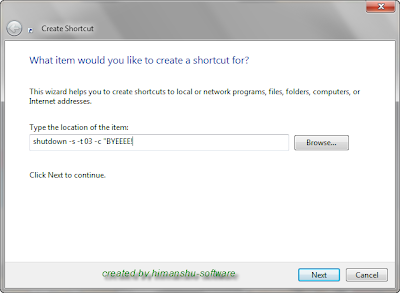
Then the Create Shortcut Wizard appears. In the box asking for the location of the shortcut, type
shutdown -s -t 03 -c "BYEEEE!" ( in bold ) and after that click next.


3rd Step:
Then type shutdown or any name of your choice and click finish.


;Double click on the shortcut ....! and see what happens


I use this technique to create two shutdown shortcuts on my desktop—one for turning off my PC, and one for rebooting. 

Here are the ones I use:

shutdown -s -t 03 -c "SHUTDOWN TRICK created by himanshu-software!"

Double-clicking on that shortcut will shutdown your PC after a three-second delay and display the message "sHUTDOWN TRICK created by himanshu-software!"

shutdown -r -t 01 -c "REBOOTING TRICK created by himanshu-software"

Double-clicking on that shortcut will reboot your PC after a one-second delay and display the message "REBOOTING TRICK created by himanshu-software"


The shutdown command includes a variety of switches you can use to customize it. See below :

-s
Shuts down the PC.

-t
Indicates the duration of delay, in seconds, before performing the action.

-c "messagetext"
Displays a message in the System Shutdown window. A maximum of 127 characters can be used. The message must be enclosed in quotation marks.

-f
Forces any running applications to shut down.

-r
Reboots the PC.

                 Extra Tips and tricks


Changing Icon :

To change the icon of the shortcut go to the properties of the shortcuts and then click the Shortcut Tab
After that click on Change Icon....there you will see that a new window get opens with many icons. Choose
your icon nd then click OK and then click apply and lo there your icon gets changed


Changing Shortcut Key of the Shortcut:

This is the most important part of this trick. After completion of this trick you can shutdown or reboot your computer
with the help of few key strokes. For this trick firstly go to the properties of the shortcuts and then click the Shortcut Tab
After that you will see a Shortcut Key tab. Enter your choiced keystrokes there like I have applied Ctrl + Alt + 3, now whenever you have to run this shortcut just enter that keystroke or shortcut key


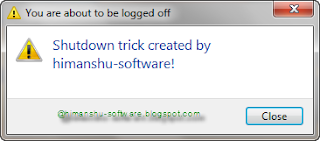
Thats it!! after a successful completion of this trick through the
hard way you will see a message like below after dobule clicking the shortcut button.


Also see :

Stop a Shutdown or Reboot Process


Please pass a comment if you have any problem regarding this trick
undefined: undefined »

Facebook Shortcuts [ Must see...] 1

Coder Himanshu | Thursday, August 04, 2011 | , ,

Heyyy friends...! As we all know facebook is the number one social networking site. We use facebook daily for interacting with your friends, relatives .........etc. Through Facebook has a very standard design with easy navigator but even through I managed to find some keyboard shortcuts keys which will surely make your facebooking life better and faster.
 

Here are the shortcuts keys for world's most popular browser that are Mozilla Firefox [ right] and Google Chrome [left]

 Please pass a comment ...if you like this
undefined: undefined »

Keyboad shortcuts for Ubuntu 8

Coder Himanshu | Sunday, July 10, 2011 | , ,


Good Afternoon ...
Everybody. After getting many Demands from our readers on posting something on Ubuntu Os I decided to post on the keyboard shortcuts of Ubuntu.
Below you will see many keyboard shortcuts for Ubuntu OS which will make your Ubuntu life faster

General keyboard shortcuts

Ctrl + A = Select all
Ctrl + C = Copy the highlighted content to clipboard
Ctrl + V = Paste the clipboard content
Ctrl + N = New (Create a new document, not in terminal)
Ctrl + O = Open a document
Ctrl + S = Save the current document
Ctrl + P = Print the current document
Ctrl + W = Close the close document
Ctrl + Q = Quit the current applicationKeyboard shortcuts for GNOME desktopCtrl + Alt + F1 = Switch to the first virtual terminal
Ctrl + Alt + F2(F3)(F4)(F5)(F6) = Select the different virtual terminals
Ctrl + Alt + F7 = Restore back to the current terminal session with X
Ctrl + Alt + Backspace = Restart GNOME
Alt + Tab = Switch between open programs
Ctrl + Alt + L = Lock the screen.
Alt + F1 = opens the Applications menu
Alt + F2 = opens the Run Application dialog box.
Alt + F3 = opens the Deskbar Applet
Alt + F4 = closes the current window.
Alt + F5 = unmaximizes the current window
Alt + F7 = move the current window
Alt + F8 = resizes the current window.
Alt + F9 = minimizes the current window.
Alt + F10 = maximizes the current window
Alt + Space = opens the window menu.
Ctrl + Alt + + = Switch to next X resolution
Ctrl + Alt + - = Switch to previous X resolution
Ctrl + Alt + Left/Right = move to the next/previous workspaceKeyboard shortcuts for TerminalCtrl + A = Move cursor to beginning of line
Ctrl + E = Move cursor to end of line
Ctrl + C = kills the current process.
Ctrl + Z = sends the current process to the background.
Ctrl + D = logs you out.
Ctrl + R = finds the last command matching the entered letters.
Enter a letter, followed by Tab + Tab = lists the available commands beginning with those letters.
Ctrl + U = deletes the current line.
Ctrl + K = deletes the command from the cursor right.
Ctrl + W = deletes the word before the cursor.
Ctrl + L = clears the terminal output
Shift + Ctrl + C = copy the highlighted command to the clipboard.
Shift + Ctrl + V (or Shift + Insert) = pastes the contents of the clipboard.
Alt + F = moves forward one word.
Alt + B = moves backward one word
Arrow Up/Down = browse command history
Shift + PageUp / PageDown = Scroll terminal outputKeyboard shortcuts for CompizAlt + Tab = switch between open windows
Win + Tab = switch between open windows with Shift Switcher or Ring Switcher effect
Win + E = Expo, show all workspace
Ctrl + Alt + Down = Film Effect
Ctrl + Alt + Left mouse button = Rotate Desktop Cube
Alt + Shift + Up = Scale Windows
Ctrl + Alt + D = Show Desktop
Win + Left mouse button = take screenshot on selected area
Win + Mousewheel = Zoom In/Out
Alt + Mousewheel = Transparent Window
Alt + F8 = Resize Window
Alt + F7 = Move Window
Win + P = Add Helper
F9 = show widget layer
Shift + F9 = show water effects
Win + Shift + Left mouse button = Fire Effects
Win + Shift + C = Clear Fire Effects
Win + Left mouse button = Annotate: Draw
Win + 1 = Start annotation
Win + 3 = End annotation
Win + S = selects windows for grouping
Win + T = Group Windows together
Win + U = Ungroup Windows
Win + Left/Right = Flip WindowsKeyboard shortcut for NautilusShift + Ctrl + N = Create New Folder
Ctrl + T = Delete selected file(s) to trash
Alt + ENTER = Show File/Folder Properties
Ctrl + 1 = Toggle View As Icons
Ctrl + 2 = Toggle View As List
Shift + Right = Open Directory (Only in List View)
Shift + Left = Close Directory (Only in List View)
Ctrl + S = Select Pattern
F2 = Rename File
Ctrl + A = Select all files and folders
Ctrl + W = Close Window
Ctrl + Shift + W = Close All Nautilus Windows
Ctrl + R = Reload Nautilus Window
Alt + Up = Open parent directory
Alt + Left = Back
Alt + Right = Forward
Alt + Home = go to Home folder
Ctrl + L = go to location bar
F9 = Show sidepane
Ctrl + H = Show Hidden Files
Ctrl + + = Zoom In
Ctrl + - = Zoom Out

 Please drop a comment!!!!


undefined: undefined »

Microsoft Office Shortcuts 0

Coder Himanshu | Tuesday, March 15, 2011 | ,

Here are few of the Ms Office shortcuts which will surely make your Office experience Faster,Smarter and interesting


Ctrl+Shift+Up Arrow : Select to the Beginning of the paragraph
Ctrl+Shift+END : Select to the End of the Document
Ctrl+Shift+HOME : Select to the Beginning of the Document
Ctrl+Shift+> : Increase Font Size
Ctrl+Shift+D : Double Underline the selected document
Alt+Shift+D : Insert Date Field at current insertion location
Ctrl+G : Go to option
Ctrl+F : Find
Ctrl+J : Justified Align                 
Alt+F10 : To Maximize Window
Ctrl+F2 : Print Preview
Shift+F3 : Change Case
Shift+F7 : Thesaurus
Ctrl+Shift+F12 : To Print
Ctrl+P : To Print
F3 : Autotext insertion
F4 : Repetition of Last Action (Repeat Last Command)
F8 : To Extend Selection undefined: undefined »

Internet Explorer shortcuts 0

Coder Himanshu | Monday, February 28, 2011 | , ,

CTRL+A - Select all items on the current page
CTRL+D - Add the current page to your Favorites
CTRL+E - Open the Search bar
CTRL+F - Find on this page
CTRL+H - Open the History bar
CTRL+I - Open the Favorites bar
CTRL+N - Open a new window                                            
CTRL+O - Go to a new location
CTRL+P - Print the current page or active frame
CTRL+S - Save the current page
CTRL+W - Close current browser window
CTRL+ENTER - Adds the
http://www. (url) .com
SHIFT+CLICK - Open link in new window
BACKSPACE - Go to the previous page
ALT+HOME - Go to your Home page
HOME - Move to the beginning of a document
TAB - Move forward through items on a page
END - Move to the end of a document
ESC - Stop downloading a page
F11 - Toggle full-screen view
F5 - Refresh the current page
F4 - Display list of typed addresses
F6 - Change Address bar and page focus
ALT+RIGHT ARROW - Go to the next page
SHIFT+CTRL+TAB - Move back between frames
SHIFT+F10 - Display a shortcut menu for a link
SHIFT+TAB - Move back through the items on a page
CTRL+TAB - Move forward between frames
CTRL+C - Copy selected items to the clipboard
CTRL+V - Insert contents of the clipboard
ENTER - Activate a selected link
HOME - Move to the beginning of a document
END - Move to the end of a document
undefined: undefined »

Mouse middle button shortcuts for Browser 0

Coder Himanshu | Monday, February 07, 2011 | , ,

We often use mouse to quickly navigate to elements on a webpage. While there are Chrome keyboard shortcuts to perform basic tasks quickly in browser, you can also use mouse’s middle button (mouse wheel) for even quicker actions in Chrome. Checkout following listing of mouse middle button shortcuts for browser.

1. Open Links in Browser

Click link with middle mouse button / mousewheel to open link in new tab in the background.
Click link with middle mouse button / mousewheel and press Shift key to open link in a new tab and switch to the newly opened tab.

2. Open buttons in Chrome menu bar ( for Google chrome)

You can click menu buttons like forward, back, refresh with middle mouse button / mousewheel to open them in new tab in the background.

3. Close Tabs in Browser

Click middle mouse button or press mousewheel to close any opened tab.

4. Zoom In / Out webpage

Press Ctrl and scroll your mousewheel up will enlarge or zoom in webpage.
Press Ctrl and scroll your mousewheel down will zoom out and make webpage smaller.

5. Scrolling webpage layout

Press middle mouse button or mousewheel to activate auto scrolling. Move your mouse around auto scroll icon to navigate webpage in desired direction. undefined: undefined »

Windows explorer shortcuts 0

Coder Himanshu | Saturday, February 05, 2011 | ,

ALT+SPACEBAR - Display the current window’s system menu
SHIFT+F10 - Display the item's context menu
CTRL+ESC - Display the Start menu
ALT+TAB - Switch to the window you last used
ALT+F4 - Close the current window or quit
CTRL+A - Select all items
CTRL+X - Cut selected item(s)
CTRL+C - Copy selected item(s)
CTRL+V - Paste item(s)
CTRL+Z - Undo last action
CTRL+(+) - Automatically resize the columns in the right hand pane
TAB - Move forward through options
ALT+RIGHT ARROW - Move forward to a previous view
ALT+LEFT ARROW - Move backward to a previous view
SHIFT+DELETE - Delete an item immediately
BACKSPACE - View the folder one level up
ALT+ENTER - View an item’s properties
F10 - Activate the menu bar in programs
F6 - Switch between left and right panes
F5 - Refresh window contents
F3 - Display Find application
F2 - Rename selected item
undefined: undefined »

Windows shortcut keys 0

Coder Himanshu | Saturday, February 05, 2011 | ,


Some of Windows users tend to use Keyboard Shortcut Keys for performing a task or an operation. They prefer using it because it is faster than using Mouse. I am one of the user who use lot of Windows Shortcut Keys.

ALT+- (ALT+hyphen) Displays the Multiple Document Interface (MDI) child window's System 
menu
ALT+ENTER View properties for the selected item
ALT+ESC Cycle through items in the order they were opened
ALT+F4 Close the active item, or quit the active program
ALT+SPACEBAR Display the System menu for the active window
ALT+TAB Switch between open items
ALT+Underlined letter Display the corresponding menu
BACKSPACE View the folder one level up in My Computer or Windows Explorer
CTRL+A Select all
CTRL+B Bold
CTRL+C Copy
CTRL+I Italics
CTRL+O Open an item
CTRL+U Underline
CTRL+V Paste
CTRL+X Cut
CTRL+Z Undo
CTRL+F4 Close the active document
CTRL while dragging Copy selected item
CTRL+SHIFT while dragging Create shortcut to selected iteM
CTRL+RIGHT ARROW Move the insertion point to the beginning of the next word
CTRL+LEFT ARROW Move the insertion point to the beginning of the previous word
CTRL+DOWN ARROW Move the insertion point to the beginning of the next paragraph
CTRL+UP ARROW Move the insertion point to the beginning of the previous paragraph
SHIFT+DELETE Delete selected item permanently without placing the item in the Recycle Bin
ESC Cancel the current task
F1 Displays Help
F2 Rename selected item
F3 Search for a file or folder
F4 Display the Address bar list in My Computer or Windows Explorer
F5 Refresh the active window
F6 Cycle through screen elements in a window or on the desktop
F10 Activate the menu bar in the active program
SHIFT+F10 Display the shortcut menu for the selected item
CTRL+ESC Display the Start menu
SHIFT+CTRL+ESC Launches Task Manager
SHIFT when you insert a CD Prevent the CD from automatically playing
WIN Display or hide the Start menu
WIN+BREAK Display the System Properties dialog box
WIN+D Minimizes all Windows and shows the Desktop
WIN+E Open Windows Explorer
WIN+F Search for a file or folder
WIN+F+CTRL Search for computers
WIN+L Locks the desktop
WIN+M Minimize or restore all windows
WIN+R Open the Run dialog box
WIN+TAB Switch between open items
undefined: undefined »