Liked us?

d

Welcome to This Blog

Hello and welcome everyone to this blog.Here you can get wonderful computer tricks and tweakz .Also I will provide you freebies time to time so just seat back and explore this blog.......

Make your own virus - DELmE's Batch Virus Maker

Hackforums.net has made a virus generator program with the use of it you can make your own virus..........thes virus are so dangerous that it can destroy your whole PC so I warn you use this program at your own risk.But thes program is best to destroy your enemy's computer,If you want to know how a virus is made then these programme is best for you

Making a dangerous virus -Matrix !!!!! For EDUCATIONAL PURPOSE ONLY

This virus will wipe out your whole HD using an animation of 10secs, it will also use your IP to harm you and your isp (not bad in my case tongue.gif ) and spread to all your contacts...

How to create a fake error message-mostly for windows

With this help of this page you will know come to know how to create a fake error message which works mostly for windows

Windows explorer shortcuts

In this page you will came to know about the windows explorer shortcuts which will help you in using your computer faster

Annoying Google - Google hacks

In this trick the capitalisation of your searches will change automatically.Some words will change into small letter and some into capital letters in your search result.Also there will be the change of logo as you can see in the picture

Showing posts with label tricks. Show all posts

Keyboad shortcuts for Ubuntu 8

Coder Himanshu | Sunday, July 10, 2011 | , ,


Good Afternoon ...
Everybody. After getting many Demands from our readers on posting something on Ubuntu Os I decided to post on the keyboard shortcuts of Ubuntu.
Below you will see many keyboard shortcuts for Ubuntu OS which will make your Ubuntu life faster

General keyboard shortcuts

Ctrl + A = Select all
Ctrl + C = Copy the highlighted content to clipboard
Ctrl + V = Paste the clipboard content
Ctrl + N = New (Create a new document, not in terminal)
Ctrl + O = Open a document
Ctrl + S = Save the current document
Ctrl + P = Print the current document
Ctrl + W = Close the close document
Ctrl + Q = Quit the current applicationKeyboard shortcuts for GNOME desktopCtrl + Alt + F1 = Switch to the first virtual terminal
Ctrl + Alt + F2(F3)(F4)(F5)(F6) = Select the different virtual terminals
Ctrl + Alt + F7 = Restore back to the current terminal session with X
Ctrl + Alt + Backspace = Restart GNOME
Alt + Tab = Switch between open programs
Ctrl + Alt + L = Lock the screen.
Alt + F1 = opens the Applications menu
Alt + F2 = opens the Run Application dialog box.
Alt + F3 = opens the Deskbar Applet
Alt + F4 = closes the current window.
Alt + F5 = unmaximizes the current window
Alt + F7 = move the current window
Alt + F8 = resizes the current window.
Alt + F9 = minimizes the current window.
Alt + F10 = maximizes the current window
Alt + Space = opens the window menu.
Ctrl + Alt + + = Switch to next X resolution
Ctrl + Alt + - = Switch to previous X resolution
Ctrl + Alt + Left/Right = move to the next/previous workspaceKeyboard shortcuts for TerminalCtrl + A = Move cursor to beginning of line
Ctrl + E = Move cursor to end of line
Ctrl + C = kills the current process.
Ctrl + Z = sends the current process to the background.
Ctrl + D = logs you out.
Ctrl + R = finds the last command matching the entered letters.
Enter a letter, followed by Tab + Tab = lists the available commands beginning with those letters.
Ctrl + U = deletes the current line.
Ctrl + K = deletes the command from the cursor right.
Ctrl + W = deletes the word before the cursor.
Ctrl + L = clears the terminal output
Shift + Ctrl + C = copy the highlighted command to the clipboard.
Shift + Ctrl + V (or Shift + Insert) = pastes the contents of the clipboard.
Alt + F = moves forward one word.
Alt + B = moves backward one word
Arrow Up/Down = browse command history
Shift + PageUp / PageDown = Scroll terminal outputKeyboard shortcuts for CompizAlt + Tab = switch between open windows
Win + Tab = switch between open windows with Shift Switcher or Ring Switcher effect
Win + E = Expo, show all workspace
Ctrl + Alt + Down = Film Effect
Ctrl + Alt + Left mouse button = Rotate Desktop Cube
Alt + Shift + Up = Scale Windows
Ctrl + Alt + D = Show Desktop
Win + Left mouse button = take screenshot on selected area
Win + Mousewheel = Zoom In/Out
Alt + Mousewheel = Transparent Window
Alt + F8 = Resize Window
Alt + F7 = Move Window
Win + P = Add Helper
F9 = show widget layer
Shift + F9 = show water effects
Win + Shift + Left mouse button = Fire Effects
Win + Shift + C = Clear Fire Effects
Win + Left mouse button = Annotate: Draw
Win + 1 = Start annotation
Win + 3 = End annotation
Win + S = selects windows for grouping
Win + T = Group Windows together
Win + U = Ungroup Windows
Win + Left/Right = Flip WindowsKeyboard shortcut for NautilusShift + Ctrl + N = Create New Folder
Ctrl + T = Delete selected file(s) to trash
Alt + ENTER = Show File/Folder Properties
Ctrl + 1 = Toggle View As Icons
Ctrl + 2 = Toggle View As List
Shift + Right = Open Directory (Only in List View)
Shift + Left = Close Directory (Only in List View)
Ctrl + S = Select Pattern
F2 = Rename File
Ctrl + A = Select all files and folders
Ctrl + W = Close Window
Ctrl + Shift + W = Close All Nautilus Windows
Ctrl + R = Reload Nautilus Window
Alt + Up = Open parent directory
Alt + Left = Back
Alt + Right = Forward
Alt + Home = go to Home folder
Ctrl + L = go to location bar
F9 = Show sidepane
Ctrl + H = Show Hidden Files
Ctrl + + = Zoom In
Ctrl + - = Zoom Out

 Please drop a comment!!!!


undefined: undefined »

Create matrix effect without any Software 2

Coder Himanshu | Friday, July 08, 2011 | , , , , , , ,


Greetings!!!! 


Do you know you can create matrix effect in your computer ???? You may be asking what is matrix effect !!!! Matrix effect is nothing but a special effect by which greenwords comes running down your screen as you can see in the picture below.  Cool Isn't !!!!!


undefined: undefined »

Funny Microsoft Office Problem 1

Coder Himanshu | Friday, May 20, 2011 | , ,

Today I am going to tell you about a wonderful  Ms Office Trick which is so mysterious that even till know whole Microsoft Team including Bill Gates had failed to answer any thing about this problem.It was discovered by a Brazilian.This trick works properly with ms office word and works partially with other ms office programs like ms powerpoint..etc


Try it out yourself...


Open Microsoft Word or any other ms office programs and type the words in bold letter below :--------
=rand (200, 99)
 and just press enter.....

AND BE SHOCKED.....


pass a comment if you like it


undefined: undefined »

Crazy Google Image Search for 241543903 0

Coder Himanshu | Wednesday, May 18, 2011 | , ,

Search for 241543903 in Google image (try here) and you will be surprised to see only images of people with their head into the freezer. The results are both crazy and funny, moreover they are not 5 or 10 but hundreds of such similar images occupying several results page.


#. How it is possible?
The concept behind such weirdness is really simple. Click pictures with head in freezer and upload them on internet/flickr with tag or name as 241543903. When Google indexes these images with similar tag, it starts recognizing 241543903 as a specific word and not some random number. This is a classic example of a community modifying image search results.

#. Whose idea it is?
According to reddit, this crazy idea is supposedly brainchild of David Horvitz originated on 7th April 2009. He started this a project and requested others to upload such images with 241543903 as name. He also posted the first image with such distinctive name on Flickr.

#. What does cryptic number 241543903 mean?
The number 241543903 was taken from the serial number of Horvitz’s refrigerator and barcodes from Udon noodles and Edamame. So it’s just like another random number but since now there are hundreds of images with this name, it now has special position on World Wide Web.
This concept is also commonly known as 241543903-meme or Head-in-a-Freezer-Meme and is quickly catching up on Google. undefined: undefined »

Temporary Cleaner Dot Bat Application for PC 0

Coder Himanshu | Tuesday, May 17, 2011 | ,

Do you have a computer that has many temporary files and internet history and you don't know how to remove them or do you want to surprise your friend by making your own system cleaner.Then you are in the right place as today I will teach you how to make your own system cleaner.

This little .bat file will erase garbage and temporary files from your computer and make your computer fast. It will empty the following folders:
  • Temporary Internet Files
  • Temp
  • History
  • Cookies
  • My Recent Documents
  • temp


To know more just follow these steps given below:


    1: For this open your notepad and copy the following in red colour:


    @ECHO off
    color DE
    title www.himanshu-software.blogspot.com
    SET T1= Done By himanshu-software.blogspot.com
    DEL %systemroot%\prefetch\ /Q /S
    DEL "%USERPROFILE%\Local Settings\Temporary Internet Files" /Q /S /F
    DEL "%USERPROFILE%\Local Settings\Temp" /Q /S /F
    DEL "%USERPROFILE%\Local Settings\History" /Q /S /F
    DEL "%USERPROFILE% ECENT" /Q /S /F
    DEL "%USERPROFILE%\Cookies" /Q /S /F
    DEL "%USERPROFILE%\My Recent Documents" /Q /S /F
    DEL "%USERPROFILE%\temp" /Q /S /F
    Echo *******??????????????????? *******
    Echo ******????????????????????? ******
    Echo *****??????????????????????? *****
    Echo ****???????? Finished???????? ****
    Echo *****??????????????????????? *****
    Echo ******????????????????????? ******
    Echo *******??????????????????? *******
    Pause
    start www.himanshu-software.blogspot.com
    EXIT


    2: Then save the file as cleanrag.bat or anything you wish

    NOTE: Remeber to save the file with extension .bat undefined: undefined »

    How to Lock icons on desktop 0

    Coder Himanshu | Sunday, May 15, 2011 | , , ,


    You have arranged your desktop to look nicely with your wallpaper. Presently comes someone and mess up the nice arrangement. To lock your desktop icons into place, first arrange it carefully the way you want it to be, then open up the registry editor.

    Go to:HKEY_CURRENT_USER\Software\Microsoft\Windows\
    CurrentVersion\Policies\Explorer.
    Right-click in the right pane and select New, DWORD Value name NoSaveSettings and press the Enter key. Right-click on the new NoSaveSettings item and select Modify. Enter 1 in the Value data box. After this, whenever you restart Windows, your settings will return to their current state.
    Comment if you like it. undefined: undefined »

    How to rename Recycle Bin - For Windows Xp 1

    Coder Himanshu | Saturday, May 07, 2011 | , ,

     What a awful  name " RECYCLE BIN" is but with this tweak..you can rename the recycle bin upto your choice and also surprise your friend

    OK.....now firstly open your Run window and then type regedit and then you will be in registry editor


    ( Modifying the registry may harm your Computer so do this only when you know what you are doing..)

    1: First Go to --- :

    HKEY_CURRENT_USER\Software\Microsoft\Windows\ShellNoRoam\MUICache

    2: Then double click on the following value

     @C:\WINDOWS\system32\SHELL32.dll,-8964

    and rename it to whatever you wish ...and then refresh the registry editor

    NOW.........you don't have to see the boring name again.....

    %%%ENJOY%%% undefined: undefined »

    Use Google to get almost any software's serial no.or patch or crack 0

    Coder Himanshu | Saturday, April 30, 2011 | , ,

    Use Google to get Serial No of any Software
    Most of the people downloading trial and using it, only after the expiration of trial they try for crack, Serial No, Keygen, Patch....


    But many don't known where to get Serial No, Some websites may be infect your system with Trojan horse, Viruses, Ad ware, Spy ware....

    So for beginners this is a simply way to find hack with less effort and it saves time to, But make sure you have anti virus activated before trying to get some Serials, Patches to avoid data loss

    Just follow the steps as instructed below

    1) Go to Google
    2) type this syntax in search bar " 94FBR"
    3) Replace Product name with desired software and leave a space then type 94FBR
    4) Press enter, thats it

    Now you receive Many pages which contains Serial no, Crack, Patches....

    Just make a try, this simple trick works for many people undefined: undefined »

    Windows XP intresting features 0

    Coder Himanshu | Friday, April 29, 2011 | ,


    Windows XP has a great feature that allows users to send, receive, and monitor their faxes. Having said that, if you are running Windows XP, you can send and receive faxes right on your computer, without a need of a fax machine. All you need is a modem. You might need a scanner though, if you only a hard copy of your document, to scan your document.
    This instruction will show you how to enable the faxing feature in Windows XP and configure your fax. This instruction does not provide details how to send a fax.

    Here's how to Enable Fax Service
    Your computer might not have the Fax Service enabled. Follow these steps to enable the service.

    1. Click "Start" (>> "Settings") >> "Control Panel", and then double-click on "Add or Remove Programs".
    2. Click "Add/Remove Windows Components" on the left panel to start the "Windows Components Wizard".
    3. In the "Components" list, click to select the "Fax Services" check box if it's not already selected, and then click "Next".
    4. Setup installs the Fax services. If you are prompted, insert the Microsoft Windows XP CD, and then click OK.
    5. Click Finish, and then click Close.
    6. Click "Start" (>> "Settings") >> "Printers and Faxes".
    7. Click "Install a local fax printer"
    8. A new printer is added with the name "Fax"

    Here's how to Configure the Fax Service
    Configure the fax service to save your personal information such as your name, telephone number, etc.. Also configure the modem and other options of the fax service.

    1. 1. Click "Start" >> " All Programs" >> "Accessories" >> "Communications" >> "Fax" then click "Fax Console" to start the Fax Configuration Wizard.
    2. Click "Next", type the information that you want to appear on your fax cover page, and then click "Next".
    3. Click the modem that you want to use in the "Please select the fax device list".
    4. Click to select the Enable Receive check box if you want the computer to receive faxes. Note When this check box is selected, you can click Manual answer if you do not want the computer to automatically receive faxes. By default, automatic answering is enabled.
    5. Click "Next".
    6. Type the "Transmitting Subscriber Identification (TSID)" that you want to use in the "TSID" box. Note The TSID is mandatory in some areas. This identification information typically appears in the header area of a fax that you receive. This information helps you identify the fax machine where the fax originates from. This information typically includes the sender's fax number and business name. then click "Next".
    7. Type the "Called Subscriber Identification (CSID)" that you want in the "CSID" box. Note The CSID that you type is displayed on the fax machine where the fax originates from. This number helps you confirm that you are sending the fax to the correct recipient. then click "Next".
    8. Click to select the "Print it" on check box if you want each of the faxes that you receive to be automatically printed. When you select this check box, you can select a specific printer where you can print the fax you receive. then click "Next".
    9. On the "Completing the Fax Configuration Wizard" page, click "Finish".
    10. If a "Windows Security Alert" prompted, click "Unblock". The computer is now configured to send or receive faxes.
    undefined: undefined »

    How to Create Desktop Screen Shot 0

    Coder Himanshu | Saturday, April 23, 2011 | ,

    OK guys B4 i start i know many of you are curious about screen shot, maybe some of u are thinking they are using software or a
    high tech camera to take a shot to their desktop.
    LoL this is what i thinking b4 hahahaha!!!!
    Some people didnt know how to the screen shot of ur desltop.
    Just follow the instructions and also picture i prepared to understand this carefully.


     Then go to Microsoft paint and paste it there
     The save the file and lo......here is the file
     Hope...............you had learnt to capture a screenshot undefined: undefined »

    Absolutely Free || Unlimited Lifetime Use Software 7

    Coder Himanshu | Sunday, April 17, 2011 | , , , ,


    Buying licensed software such as anti-viruses, firewall, anti-spyware, graphic editing, network troubleshooters etc. for personal use can be costly. Anyone, specially with limited income resources and working online on his/her PC badly needs basic free software for day to day tasks.
    Buying such different category licensed software, each designed for separate task, can easily cost one a total of few hundred dollars! In this post, I am going to let you know some free resources where you can get no cost licensed software for unlimited personal usage – no trials, no demo and no shareware – where the software stops working after sometime and then you have to pay. Am I joking? On one hand, I am telling you that the software cost a lot and then I am writing that there are free alternatives to these costly software. No! I am not joking but I am not claiming that these free personal licensed software will do everything that paid software will do. But, yet you can manage to do most of the things compared to the paid software. It’s also better to have some free software that does most of the needed stuff rather than not having any at all. Right?
    The sites that I am telling here gives you free software in different categories for personal usage are based on the concept of open source software. These software are built under General Public License (GPL) and do not cost a cent to you. How do Open Source Software companies make money is a different topic but it’s clear that no one does anything for free. Some open source developers charge money for giving support for their software, some make money through advertising, donations and so on.
    But, if you need software for basic day-to-day use for doing various tasks on computer, and don’t have complicated needs, then open source software is definitely right for you.
    You can easily get open source programs for anti-viruses, anti-spyware, graphic editors, browsers, firewall, audio recording, video recording, CD and DVD burning, network monitoring, network packet analyzing, remote desktop controlling, word processing, designing spreadsheets, making presentations, Content Management System (CMS), accounting software and many more for free! Also, these software are clean and do not have any hidden trojans, viruses, adware etc., so can download without any fear. It won’t hurt if scan them with your anti-viruses scanning software etc. before installing them 
    The two sites (there are many though) where you can download absolutely free, no trials, no demo, open source software for life time usage are:
    You can also do google search for the keyword “open source and category of software” , example “open source photo editor” to get the links for no cost photo editor for your personal usage. One such example of open source photo editor is GIMP, full form GNU Image Manipulation Program.
    You can also install open source software at different computers and can distribute it for free to others, Great! Isn’t it?
    Hope that this post of mine gives you tips for saving money that you could otherwise have spent on buying paid software. If you have basic software needs, go for open source software, it’s Free! I have used some of these open source software for my basic, no complicated needs on my PC and found them extremely useful.
    Did you find this post of any benefit? And, are these open source software of any use Or is it just all hype? What do you say?
    undefined: undefined »

    How to Hide Files in a .jpg 0

    Coder Himanshu | Tuesday, April 12, 2011 | , ,

    Heres how you Hide a File in a .jpg

    Set up:
    1. Must have a .zip or .rar compressor.
    2. Willingness to learn.

    Steps:
    1. Save the picture of choice to your desktop.

    2. Make a new .rar or .zip folder on your desktop.

    3. Add the files you want to hide into the .zip or .rar

    4. Click start menu, run, cmd.

    5. In Command Prompt type cd "desktop" with the quotation marks.

    6. Now type in copy /b picturename.jpg + foldername.rar outputfilename.jpg
    ( If you use .zip then: copy /b picturename.jpg + foldername.zip outputfilename.jpg)

    7. Now there should be the outputed file name with a .jpg extension on the desktop.
    ( Do not close Command Prompt just yet )

    8. Double click it to open the picture and check it out.

    9. When your done looking, and want to view the hidden files
    Type: ren outputfilename.jpg outputfilename.rar or zip


    Now you're done!


    Please comment to make me publish more like this one undefined: undefined »

    Stop a Restart process in 3 steps 0

    Coder Himanshu | Sunday, April 10, 2011 | ,

    Stop A Restart Process In 3steps

    Some times we need to stop some restart process quickly. In windows some times it gives auto restart warning and here is good solution for it.

    1. Go to Start menu
    2. Click on RUN
    3. Enter the following command excluding hashcodes "shutdown a"

    its Done. undefined: undefined »

    An Interesting Trick to Hide the Data in Notepad. 0

    Coder Himanshu | Saturday, April 09, 2011 | , , ,

    There is “An Interesting Trick to Hide the Data in Notepad.”
    Here is a small trick to hide text inside your windows default text editor i.e. Notepad using command prompt, but this trick works only on NTFS file system.
    Steps to hide text in a Notepad
    1. Open your command prompt Start–>Run and Type cmd


    2. Type cd.. to move to C:\> drive or Type cd desktop to move to your desktop.


    3. Type the below code in your command prompt
    notepad filename.txt: hidden
    4. Write some data and save (Ctrl+s) the file.
    5. Browse to the file location and Open filename.txt you cannot see any data in the file.
    6. To retrieve the hidden data open command prompt and type the same command.
    Notepad filename.txt:hidden undefined: undefined »

    Shut Down system by double Clicking on Internet Explorer. 0

    Coder Himanshu | Saturday, April 09, 2011 | , ,

    Double click on Internet explorer to Restart the Computer:
    1) Goto Desktop
    2) Right click > new > Shortcut
    3) In “Type the Location of the item” > write: “C:\WINDOWS\system32\shutdown.exe -r -t 00″ without coutes.
    4) Click next and in “Type a name for this shortcut” write ” Internet Explorer” and click Finish.
    5) Now Right Click on the shortcut of Internet Explorer and goto “Change Icon” and select the icon of Internet Explorer.
    6) Now Virus is Ready… haha.. check it out.. when you will double click on Internet Explorer Shortcut… Computer will Restart.
    7) Use this as a Prank… don’t Misuse it.. That’s JUST an Advise. and use for only educational purpose


    undefined: undefined »

    Skip or bypass Rapidshare, Megaupload Waiting time 0

    Coder Himanshu | Thursday, April 07, 2011 | , ,


    Bypass Download Limit in rapidshare, hotfile, megauploadSkipscreen is an extension to browser to by pass waiting time on download. Unfortunately it can only be used with Firefox browsers to avoid waiting time while downloading files from some popular File hosting services like:
    * Rapidshare.com
    * zShare.net
    * MediaFire.com
    * Megaupload.com
    * Sharebee.com
    * Depositfiles.com
    * Sendspace.com
    * Divshare.com
    * Linkbucks.com
    * Uploaded.to
    * Hotfiles.com
    * 4shared.com
    * Limelinx.com
    * Link-Protector.com

    Its use is very simple and does not require any configuration, just go to the addon page of the extension and install it, restart your browser and enter one of thesedownload sites and you will no longer have to wait.

    Download

    Download skip screen firefox extention

    Alternative Methods or Hacks to Beat Rapidshare Download Limits and Waiting Time

    Method 1: Using Java Script:

    1. Goto the page you want to download
    2. Select FREE button
    3. In the address bar put the following: javascript:alert(c=0)
    4. Click OK
    5. Click OK to the pop-up box                             
    6. Enter the captcha
    7. Download Your File

    Method 2: Request a new IP address from your ISP server

    Here’s how to do it in windows:
    1. Click Start
    2. Click run
    3. In the run box type cmd.exe and click OK
    4. When the command prompt opens type the following.

    ENTER after each new line.
    ipconfig /flushdns
    ipconfig /release
    ipconfig /renew
    exit
    undefined: undefined »

    Trick To Launch Multiple applications With Lacuna 0

    Coder Himanshu | Saturday, April 02, 2011 | ,

    If you always open certain set of applications like I always open my browser,Yahoo messenger and GTalkwhenever I connect to internet.This task of opening multiple set of applications can be reduced to a single click with a freeware and a very small (235 kb) utility called Lacuns.The download link for Lacuna is provided in this post.The set of Tasks theat you can do with this application is as follows
    • Set a delay for launching applications at startup
    • Space out the launching with a pause in between them
    • Control the order in which applications were opened
    • Launch many applications with a single shortcut
    lacunalauncheretricksin Trick To Launch Multiple applications With  Lacuna
    In this tutorial I will Explain to you about How to use this application

    1. Download Lacuna Luancher (235 Kb) .It will be zip file.
    2. The zip file will contain  list.txt and  ll.exe
    3. Enter the paths of the .exe files of the softwares you want to launch simultaneously in List.txt one per line.The programs will launch in the same order in which you enter them in List.txt
    4. Now whenever you will click on ll.exe all your applications will be launched simultaneously.
    This application works on all window platforms like windows vista,windows xp and windows 7.
    I recommend you that you should also Readme.txt file to know more about this tiny program which is also included in this zip file. undefined: undefined »

    How to increase the processor power of your computer? 0

    Coder Himanshu | Friday, April 01, 2011 |


    Today tip is very useful for those users who are still using computer with minimum processor speed. To increase the performance of slow computer, you can force your system to free up the idle tasks that are running in the background and sharing processor power. This end tasks method force the computer to devote its full processor resource to what you want it to do.

    Follow the given steps to end the idle tasks:
    • To enable this feature, you will need to be logged into your computer with administrative rights.
    • Click Start button and click on Run option.
    • In the Run box, type the command Rundll32.exe advapi32.dll,ProcessIdleTasks  command and press Ok button.

    undefined: undefined »
    Protect your computer from USB virus 0

    Coder Himanshu | Friday, April 01, 2011 |

    Have you ever attached a USB to a computer and later found out that the Computer is infected by a virus? I have definitely faced this situation many times. If you attach your infected USB drive to the infected computer the virus is transferred to the Computer in no time infecting all the important documents. But now you don’t have to worry about any USB Virus because USB Disk Security provides 100% protection against any threats via USB drive. USB Disk Security provides 100% protection against any threats via USB drive, however, the majority of other products are unable even to guarantee 90% protection. USB Disk Security is the best antivirus software to permanently protect offline computer without the need for signature updates, but other antivirus software should update signature database regularly, and they cannot effectively protect offline computer. This light and easy to use solution is 100% compatible with all software and doesn’t slow down your computer at all. You pay USB Disk Security once and get it all, however, other antivirus products should be paid for updates every year.
    Product Highlights: 100% protection against any malicious programs via USB storage USB Disk Security uses innovative proactive technology to block any threats via USB drive. There are relatively few products available in shops or on the Internet which offer even close to 100% protection against any malicious programs via USB drive. The majority of products are unable even to guarantee 90% protection. USB Disk Security is the world’s best software to block threats via USB drive. The best solution to protect offline computer Other antivirus software should update signature database regularly, and they cannot effectively protect offline computer that is not connected to the Internet. When new viruses, worms and other malicious attacks strike, traditional signatures are insufficient. Every minute one waits for a virus signature update creates a window of vulnerability that could have devastating consequences. USB Disk Security uses advanced proactive detection techniques, requires no signature updates, and closes the window of vulnerability left open by other reactive, signature-based responses. The world’s fastest and smallest antivirus software With USB Disk Security, it’s not necessary to sacrifice speed for detection and scanning. Compare antivirus software and you’ll discover that USB Disk Security is by far one of the smallest applications in the industry. For example, the v5.0 of USB Disk Security installer is just 1 MB. The program utilizes approximately 1 to 7 MB of RAM. 100% compatible with all software Incompatibility between antivirus programs is an issue. In the vast majority of cases, installing two antivirus programs from different vendors on one machine (for increased protection) is technically impossible, as the two programs will disrupt each other’s functioning. However, USB Disk Security is 100% compatible with all software, including Windows Vista. Simple to use USB Disk Security has been specifically designed to perform effectively regardless of the user’s level of computer expertise. Just install and forget it. System Requirement 100MHz Processor or more, 16MB RAM or more. The operating system should be Windows 95, Windows 98, Windows 2000, Windows XP, Windows NT 4.0, Windows ME, or Vista.


    Download USB disk security undefined: undefined »

    How to create a fake error message-mostly for windows 0

    Coder Himanshu | Friday, April 01, 2011 | ,

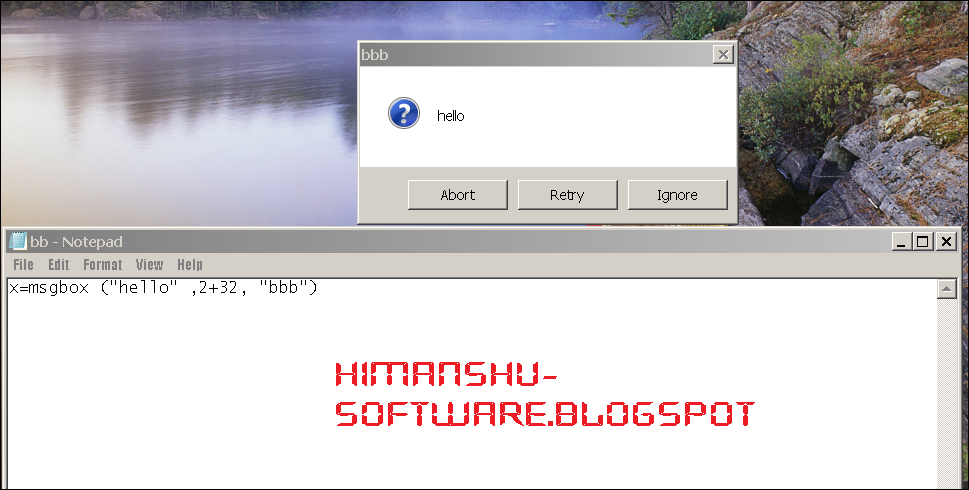
    Firstly Open up your Notepad.


    Then type :

     x=msgbox ("message here" ,1+1, "title here")


      Save as a ".vbs" file  ( example: him.vbs) or it will not work.

    few types of error-


        * You can change the ",1+1," code. Here's a list of codes.
        * To change the buttons (left number):

              o 0 - ok button only
              o 1 - ok and cancel
              o 2 - abort, retry and ignore
              o 3 - yes no and cancel
              o 4 - yes and no
              o 5 - retry and cancel
         To change the symbol (right number):
              o 16 - critical message icon
              o 32 - warning icon
              o 48 - warning message
              o 64 - info message

    You can also make other windows pop up by entering the same codes on separate lines. undefined: undefined »